
The Danger of Hardcoding OpenGraph Tags in Liquid
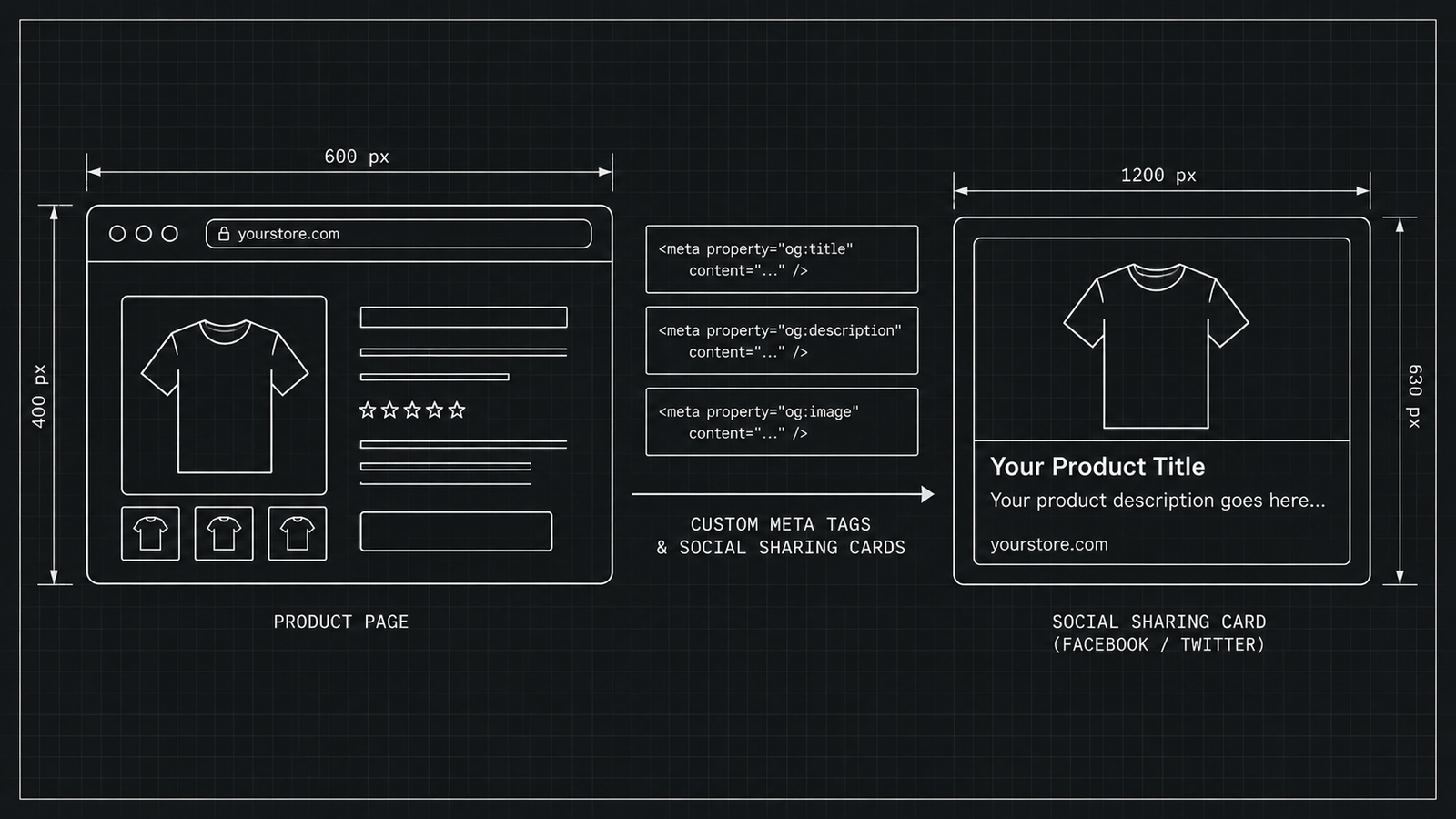
OpenGraph (OG) meta tags inform platforms like Facebook, WhatsApp, LinkedIn, and Slack how to render links shared from your online store. They specify the image, title, and description displayed when a link is shared online.
<!-- Example of Standard OpenGraph Protocol Metadata -->
<meta property="og:site_name" content="MetaMint Store">

<meta property="og:type" content="product">

<meta property="og:title" content="Leather Weekend Bag | Handcrafted Series">

<meta property="og:description" content="Vegetable-tanned full-grain leather duffel bag designed for travel. Features brass hardware and dedicated shoe compartment.">

<meta property="og:image" content="https://cdn.shopify.com/s/files/1/0000/0000/products/bag_og.jpg">

<meta property="og:url" content="https://metamintstore.com/products/leather-weekend-bag">
Historically, adding custom OpenGraph tags to a Shopify store required editing your theme’s snippet files (snippets/social-meta-tags.liquid) or pasting custom code into layout/theme.liquid.
This legacy approach introduces significant technical risks:
- Theme Upgrade Conflicts: Updating your Shopify theme overwrites manual code modifications, erasing your custom metadata configurations.
- Syntax Errors: Misplacing a single Liquid tag or failing to close an HTML tag can break rendering across your storefront.
- Duplicate Metadata Conflicts: Many modern Shopify themes include basic, unconfigurable OpenGraph logic. Adding inline code often produces duplicate og:image or og:title tags, confusing social media crawlers.
Step-by-Step Implementation Guide Using MetaMint SEO
MetaMint SEO addresses these risks by using Shopify’s modern Theme App Embed framework. You can configure custom, dynamic OpenGraph structures across all product, collection, and blog pages without writing or editing theme code.
Step 1: Enable the MetaMint SEO Theme App Embed
- Open your Shopify Admin dashboard.
- Navigate to Online Store > Themes.
- Click Customize next to your active theme.
- On the far left sidebar menu, click the App Embeds icon (the bottom tab).
- Locate MetaMint SEO in the list and toggle the switch to On.
- Click Save in the top right corner.
Step 2: Define Dynamic Fallback Templates
- Return to your Shopify Admin and open the MetaMint SEO App Dashboard.
- Select OpenGraph Settings.
- Establish default template structures for your store pages using dynamic variables:
- Product Title Pattern: [Product Title] – [Product Vendor] | [Store Name]
- Product Description Pattern: Buy [Product Title] for [Product Price]. [Product Short Description]
- Default Image: Select a high-resolution, branded fallback image (1200 x 630 px) used whenever a specific page lacks a primary image.
Step 3: Set Up Specific Product Overrides
- Inside the MetaMint SEO dashboard, click Resource Management > Products.
- Select any product that requires unique social sharing messaging.
- Upload a dedicated 1200×630 pixel OpenGraph image tailored for social sharing networks.
- Add custom preview titles and description text tailored specifically to social audiences.
- Click Publish Overrides.
Verifying Metadata Output
After configuring your OpenGraph metadata, verify your tags using platform debugging tools:
Facebook Sharing Debugger
- Navigate to the Facebook Sharing Debugger.
- Enter your product URL (e.g., https://yourdomain.com/products/sample-product).
- Click Debug. If the page was previously scraped, click Scrape Again to fetch your updated metadata.
Twitter / X Card Validator
Validate that your metadata renders correctly on X by testing your link in the post composer to verify card visual layout, title formatting, and thumbnail resolution.